
ExTiX 26.4 with GNOME 50 Desktop together with Waydroid (“Waydroid lets you launch a complete Android system on Linux with Google Play”) :: Build 260407
 ABOUT ExTiX 26.4 – Build 260407
I have made a new version of ExTiX – The Ultimate Linux System. I call it ExTiX 26.4 GNOME Waydroid Live System. I have made it possible for you to configure Waydroid in ExTiX. (Waydroid lets you launch a complete Android system on Linux with Google Play Services so you can install your favorite apps). So now you can run Android apps in ExTiX. GAPPS (Google Play Services and Google Play) are however NOT pre-installed in ExTiX 26.4. That’s because you’ll have to install GAPPS using your own Gmail account. I.e. to be able to run Google Play. The second best thing with ExTiX 26.4 is that while running the system live (from DVD/USB) or from hard drive you can use Refracta Snapshot (pre-installed) to create your own live installable Ubuntu/Waydroid system. So easy that a ten year child can do it!
ExTiX 26.4 GNOME 50 System 64 bit is based on Debian and upcoming Ubuntu 26.04 LTS Resolute Raccoon. I have installed GNOME 50 Tokyo.
NOTE about Ubuntu 26.04 LTS: It will be released in a stable version 260423 and supported until April, 2031.
The system language is ENGLISH.
Used KERNELS
Ubuntu’s latest original kernel 7.0.0-10-generic with the binder kernel module (needed by Waydroid) and my own compiled kernel 7.0.0-rc6-amd64-exton. While running ExTiX live “my” kernel will be used. To be able to run Waydroid you’ll have to use (boot with) kernel 7.0.0-10-generic.
NEWS ABOUT ExTiX 26.4 Build 260407 with the GNOME 50 Desktop Environment together with Waydroid, Calamares Installer, Refracta Installer and Refracta Snapshot
1. ExTiX 26.4 GNOME 50 System 64 bit is based on Debian and upcoming Ubuntu 26.04 LTS Resolute Raccoon. All packages have been updated to the latest version by 260407.
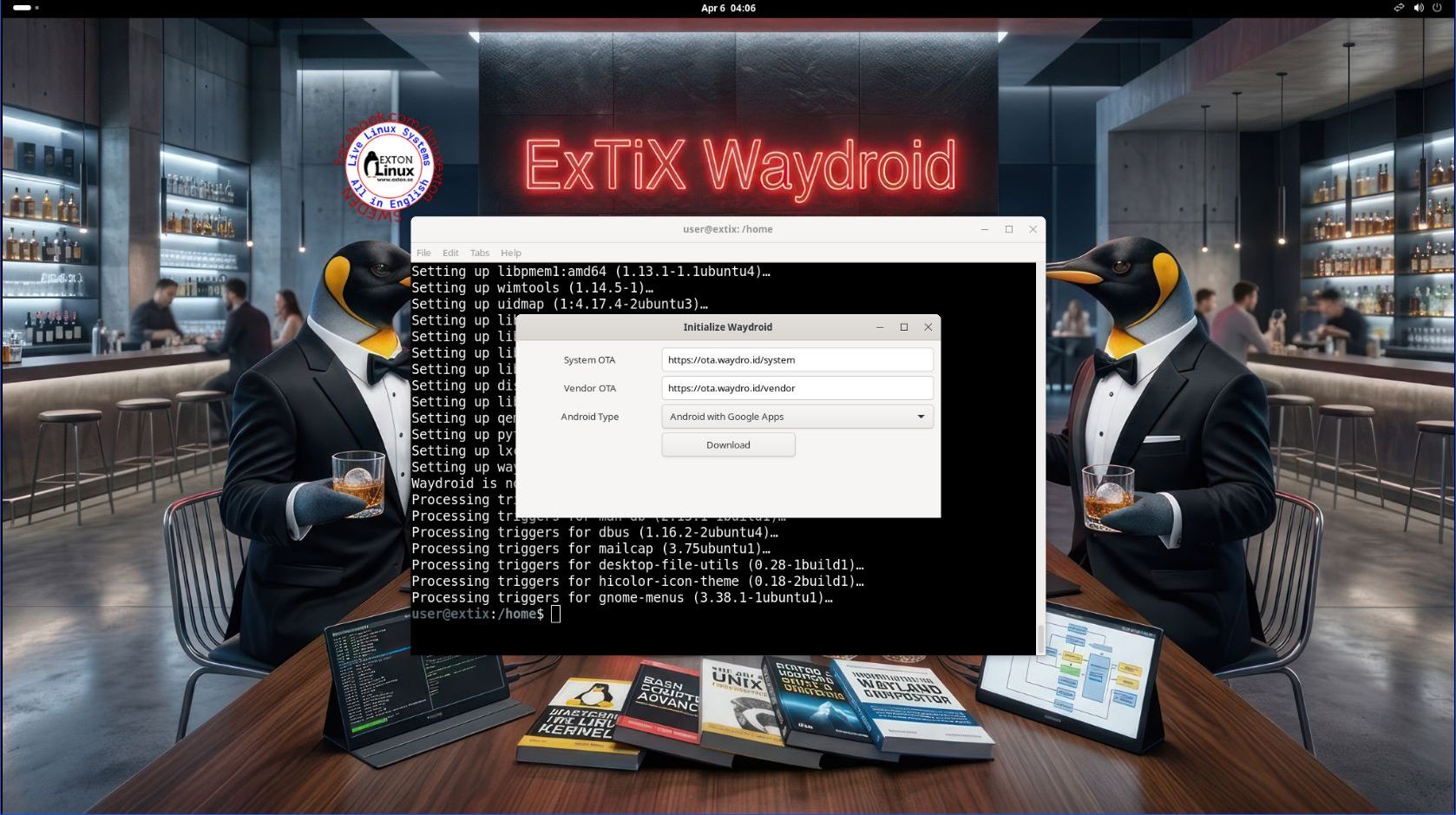
2. I have pre-installed Waydroid, but NOT Google Play. That’s because you’ll have to login with your own Gmail account to be able to run Google Play. So GAPPS (Google Play Services and Google Play Store) are NOT pre-installed in this version of ExTiX. Everything is ready in ExTiX 26.4 for installing GAPPS though. Install ExTiX to hard drive. Then just start Waydroid from the menu and wait for it to initialize. Watch this screenshot.
Be patient. It will take some time. When ready just press “Done” and Waydroid/Android 13 will start. Login to Google Play with your Gmail account and start installing the apps you want.
NOTE: Not ALL apps will run using Waydroid. Furthermore Waydroid won’t run live (from a DVD or USB stick) or in VirtualBox/VMware/Qemu. See more below about how to initialize and run Waydroid.
3. Other included important/useful packages are: GParted, GCC and other compilation tools so that you can install packages from source. Furthermore “all” multimedia codecs. Everything the average Linux user could wish for I would say.
4. Calamares Installer is installed, which means that you can install ExTiX in any language.
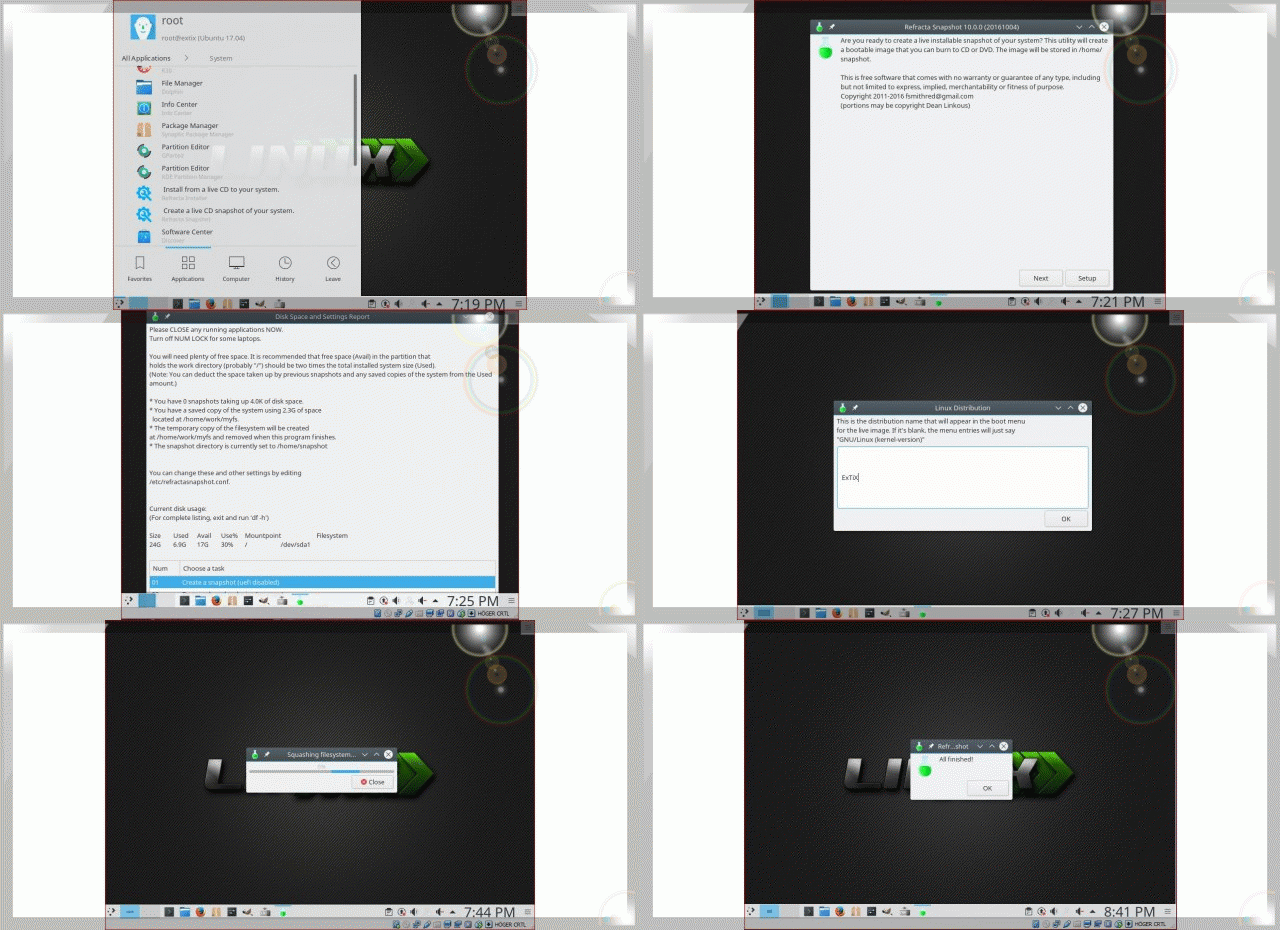
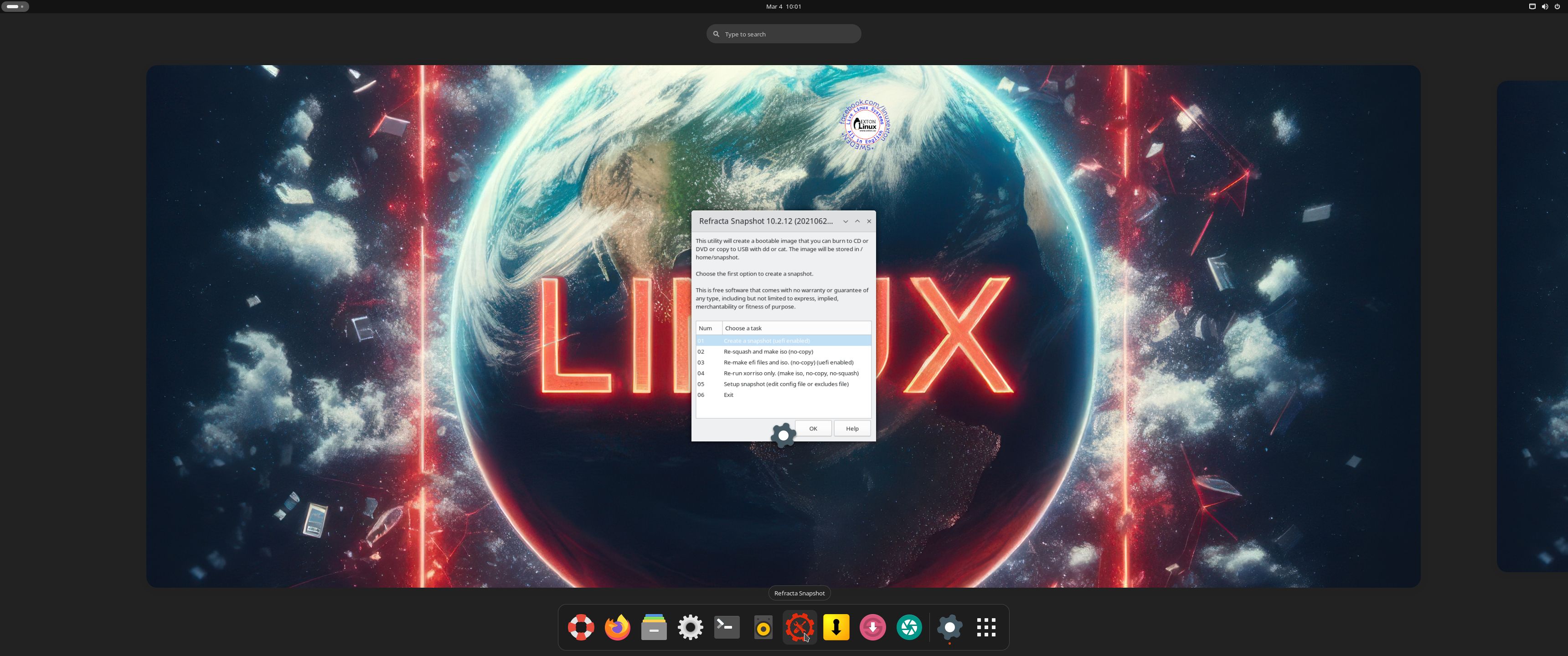
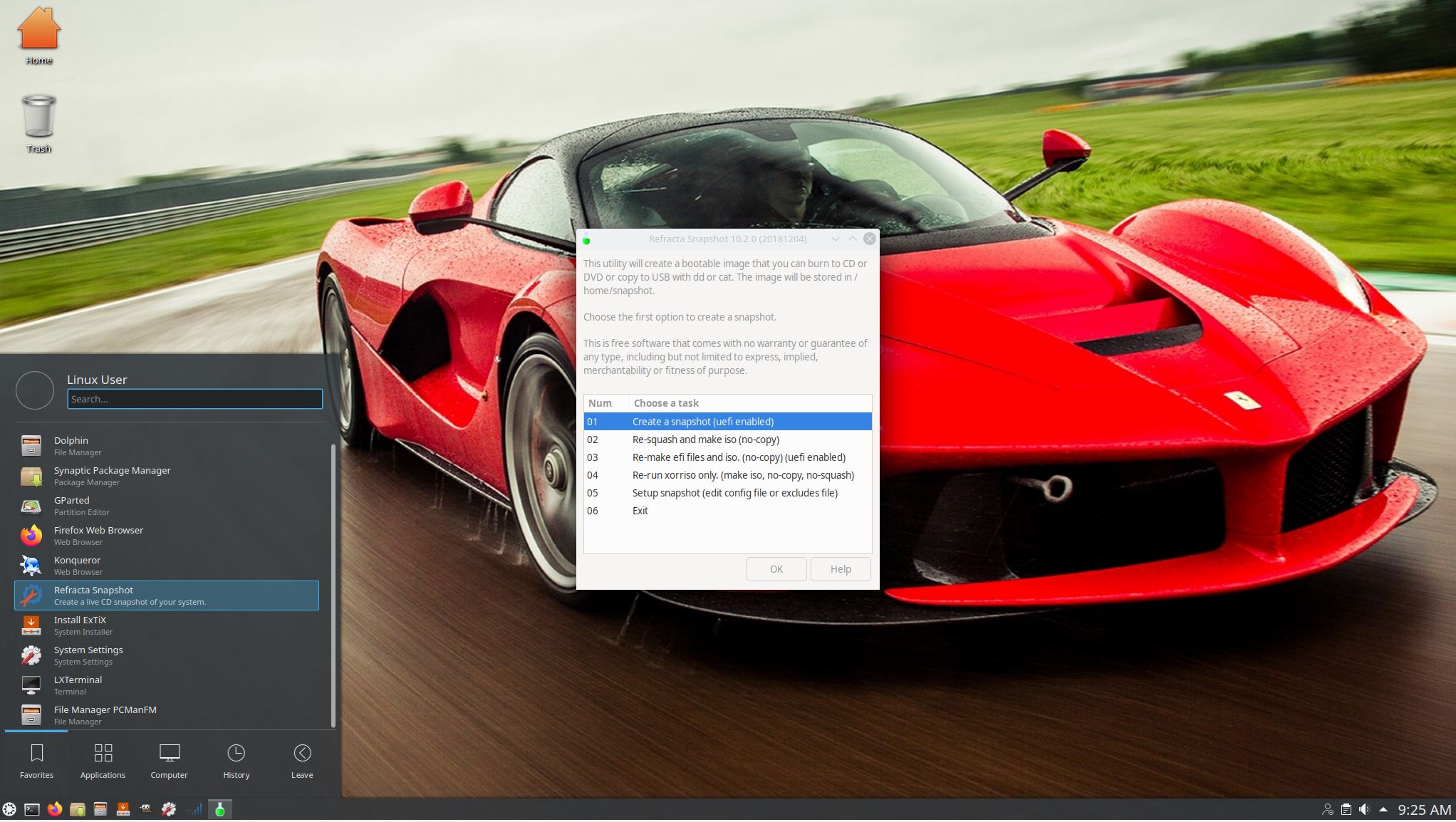
5. The second best thing with ExTiX 26.4 is that while running the system live (from a DVD/USB stick) or from hard drive you can use Refracta Snapshot (pre-installed) to create your own live installable Ubuntu system. Very easy to do. When starting Refracta Snapshot you will see this.
NOTE: In a previous ExTiX version I had Anbox installed. “Anbox is a container-based approach to boot a full Android system on a regular GNU/Linux system like Ubuntu“. However Anbox is no longer actively developed.
WHAT’S SO SPECIAL about ExTiX and especially the new version from 260407?
1. The ExTiX ISO’s are ISO-hybrids, which means that they can very easily be transferred (copied) to a USB pen drive. You can even run ExTiX from the USB stick and save all your system changes on the stick. I.e. you will enjoy persistence!
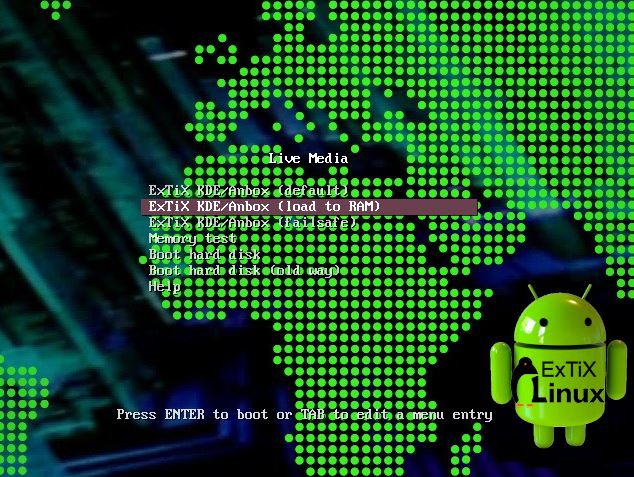
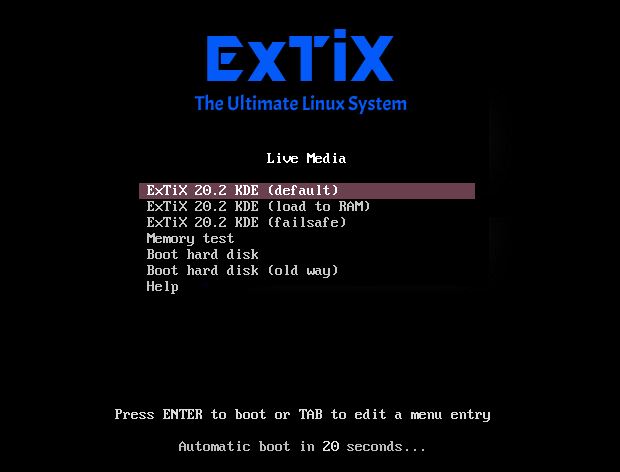
2. Another big improvement is that ExTiX can run from RAM. Use Boot alternative 2 (load to RAM). When the system has booted up you can remove the disc (DVD) or USB stick. You’ll need at least 4 GB RAM to run ExTiX 26.4 that way. Running from RAM means that the system will run faster than from DVD or USB stick. Everything will be super fast I would say!
3. I have replaced Ubuntu’s installation program Ubiquity (live installer) with Calamares and Refracta Installer. They work very well. I.e. a new user (your user) will be created during the installation process and you’ll get a chance to change root’s password.
5. After a hard drive installation of ExTiX you can initialize and run Waydroid. After installing GAPPS you can use Google Play for installing new Android apps. NOTE: Not ALL apps will run using Waydroid.
6. The best thing with ExTiX 26.4 is that while running the system live (from DVD/USB) or from hard drive you can use Refracta Snapshot (pre-installed) to create your own live installable Ubuntu/Waydroid system. Very easy to do.
LOG IN to the GNOME Desktop (with Wayland)
You can run ExTiX live as the ordinary user user. Log in from GDM3‘s Login Manager as user with password live. During a hard drive installation you will get the opportunity to create your own normal user. When logged in as user user you can use Sudo to become root. (Command: sudo su). NOTE: On certain computers it can happen that you end up in console mode when the boot process is over. Then just log in as root (password root) or user (password live) and run the command startx. You will then enter X and GNOME 50. This can happen if you use Boot alternative 2 (load to RAM). You can logout from GNOME and login again as root it you want. NOTE: You can’t run Waydroid as root and you won’t have sound while logged in as root. NOTE: You can also login as root (“Other”) from GDM3.
NOTE: I had to use GDM3 as login manager since you’ll have to use the Wayland Display Server to be able to run Waydroid. Also: You’ll have to use the GNOME Desktop (with Wayland) to be able to use Waydroid.
Internet connections
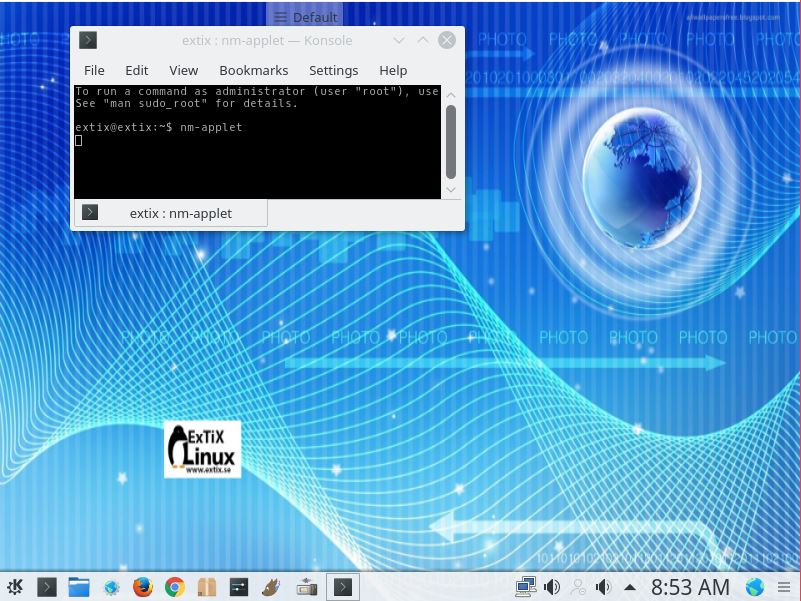
ExTiX 26.4 uses NetworkManager. You can use Internet immediately if you have a wired connection. To connect wireless you’ll have to start the NetworkManager applet (nm-applet). Watch this screenshot. If you still can’t see the applet you can always start up a terminal and run the command nm-applet – watch this screenshot. This is not needed as regards ExTiX 26.4. Just click on the Network icon in the panel up to the right, chose your Network and connect.
Install ExTiX to hard drive
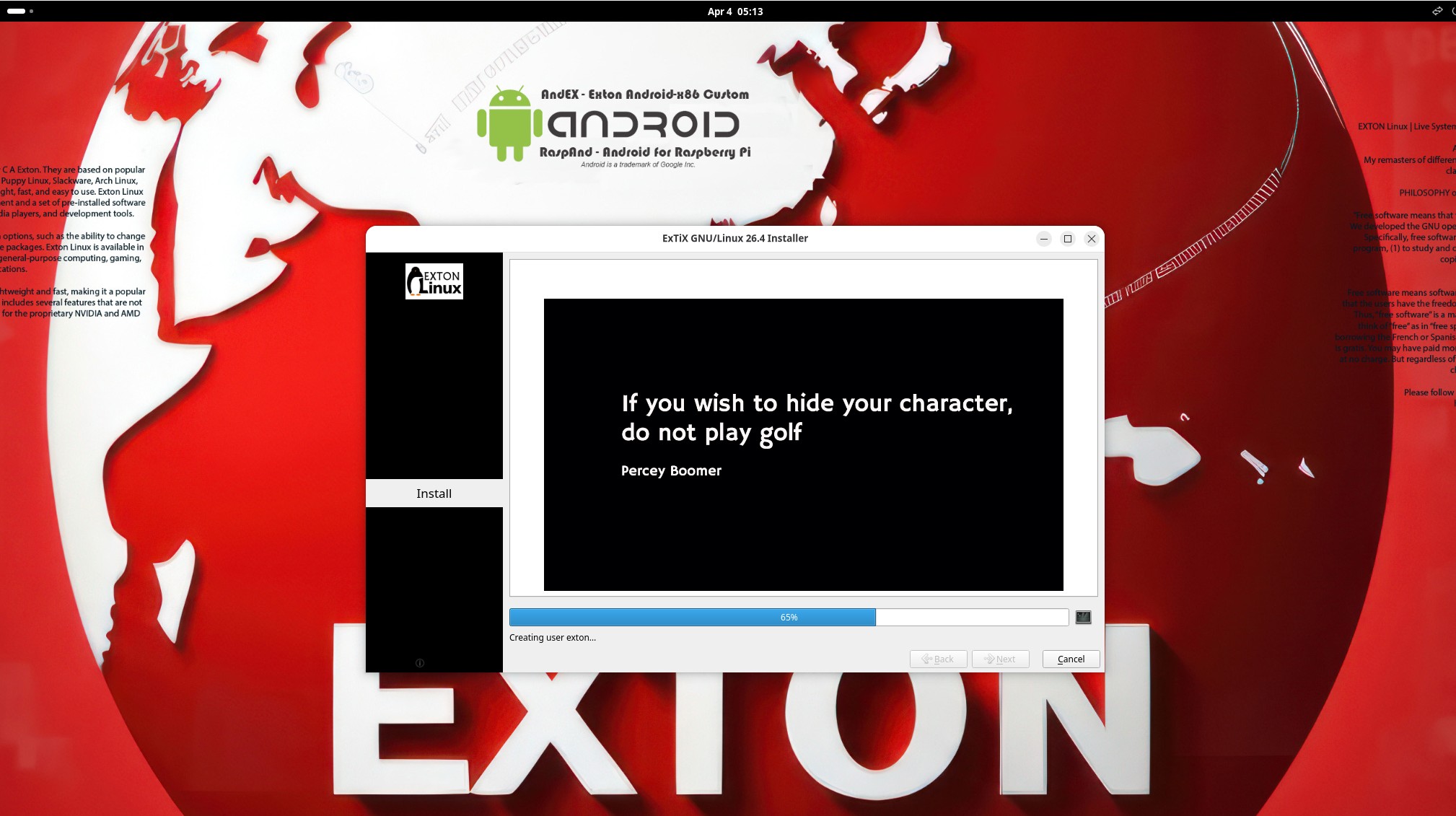
Just start Calamares Installer or Refracta Installer from the GNOME menu. Then just follow the instructions.
HOW TO install and use Waydroid in ExTiX 26.4
1. Be sure to boot up ExTiX using kernel 7.0.0-10-generic. Log in to the GNOME Desktop using the Wayland Display Server.
2. Start Waydroid from the menu and choose to install GAPPS – screenshot (Be patient. It will take some time).
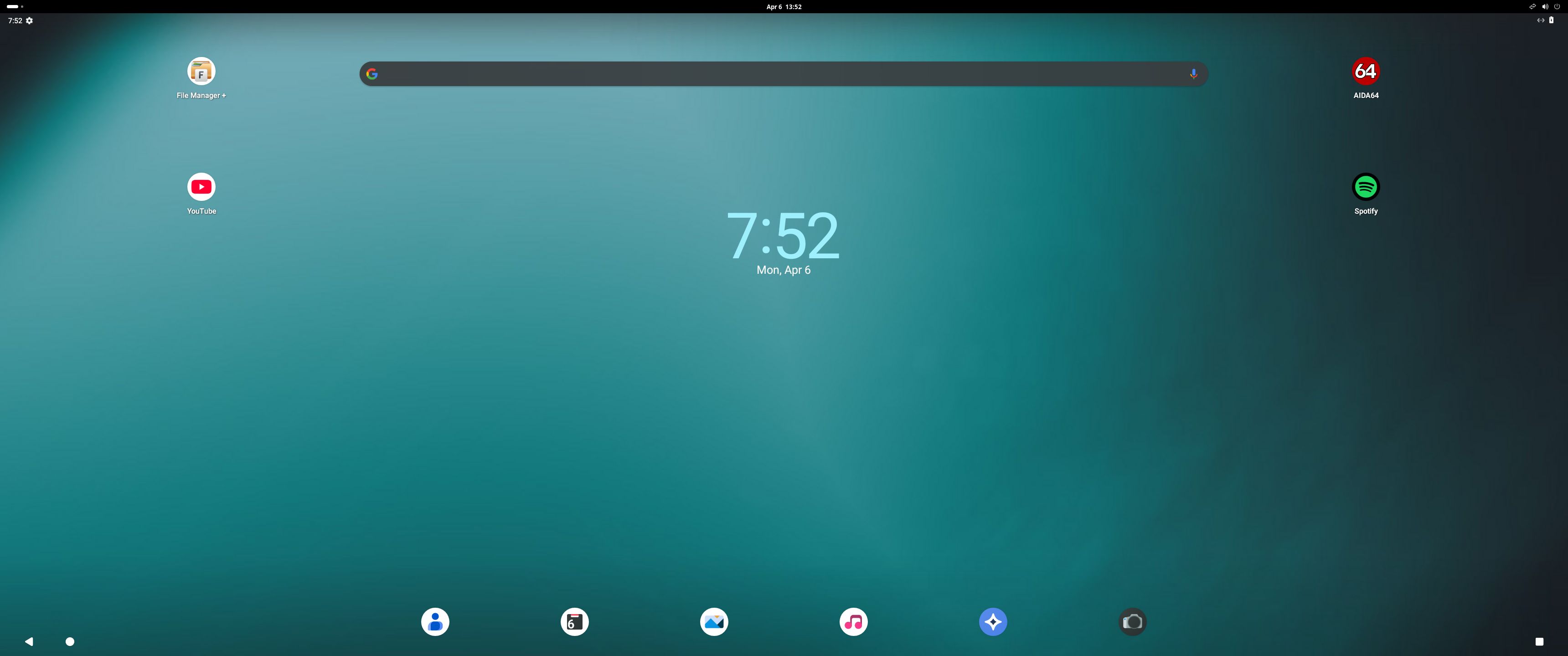
3. Running Waydroid with Google Play – screenshot
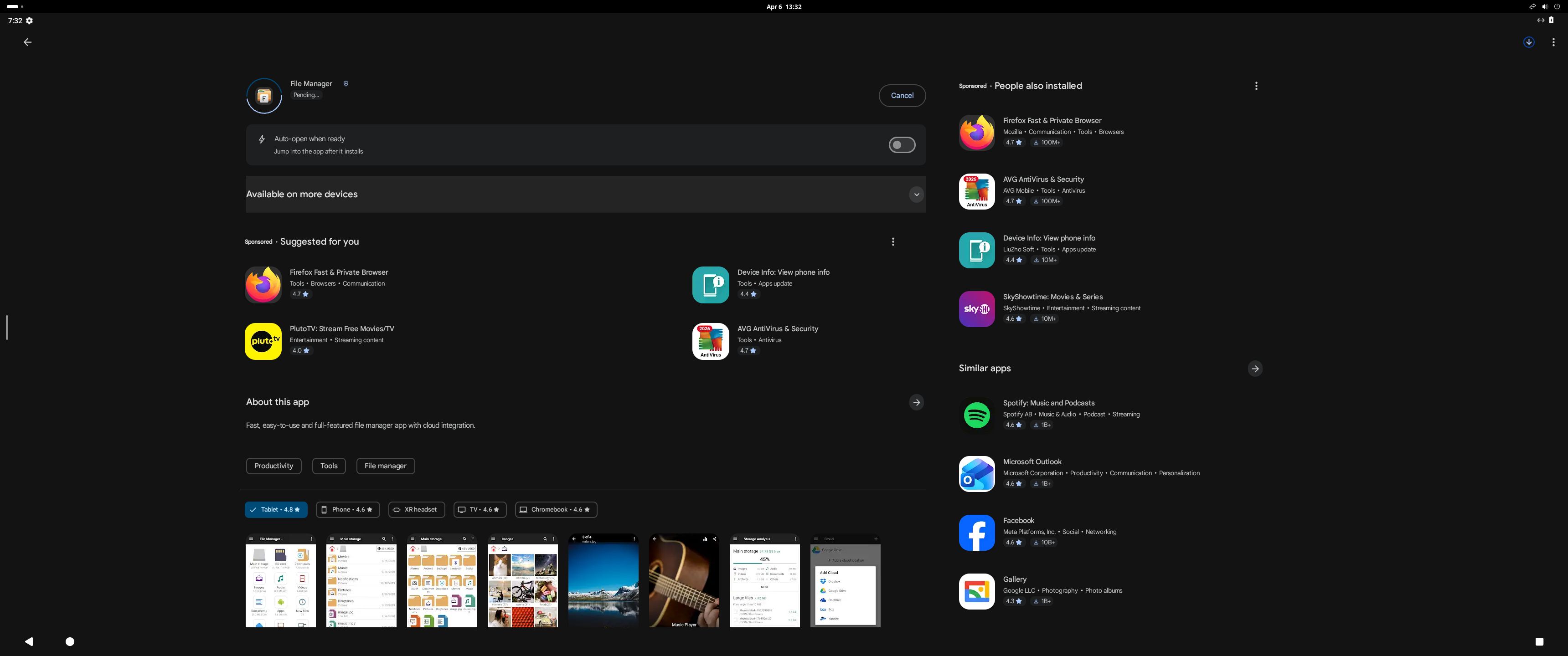
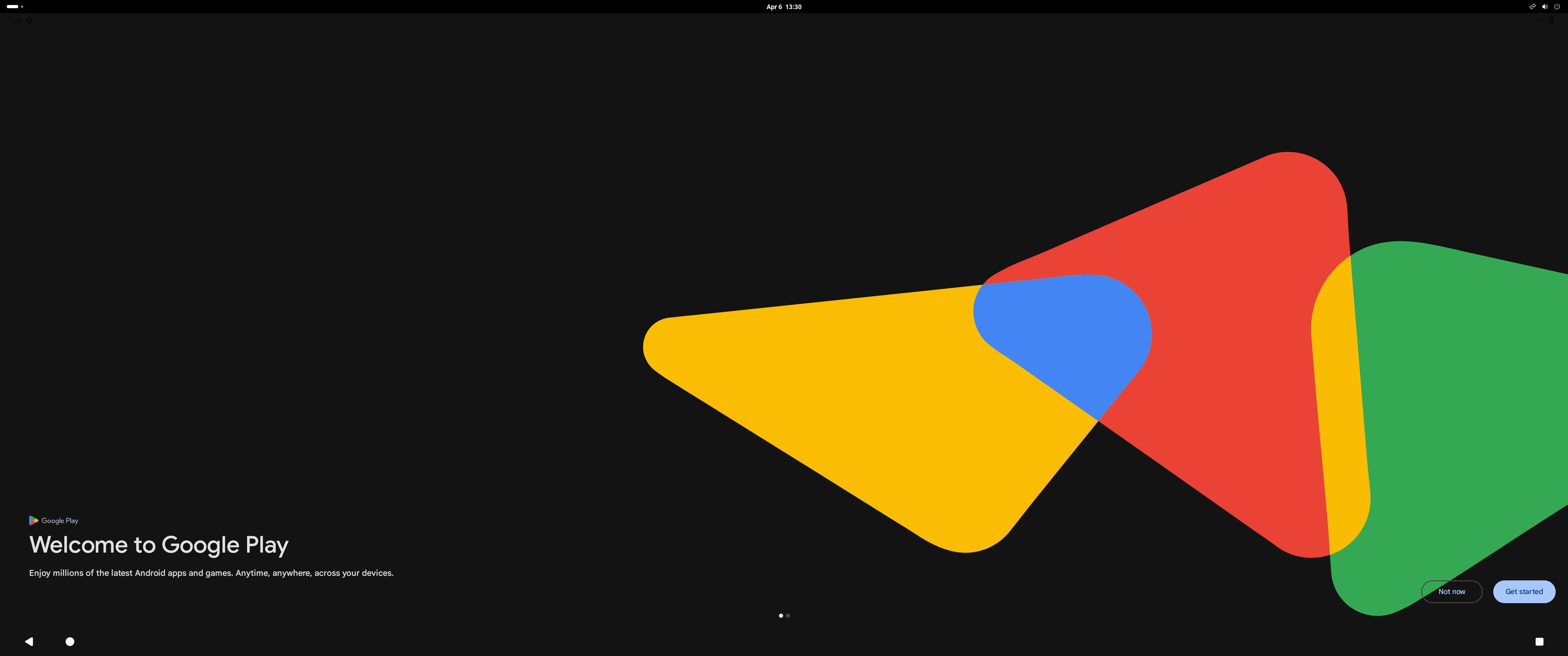
4. Running Google Play 1 – screenshot
5. Running Google Play 2 – screenshot
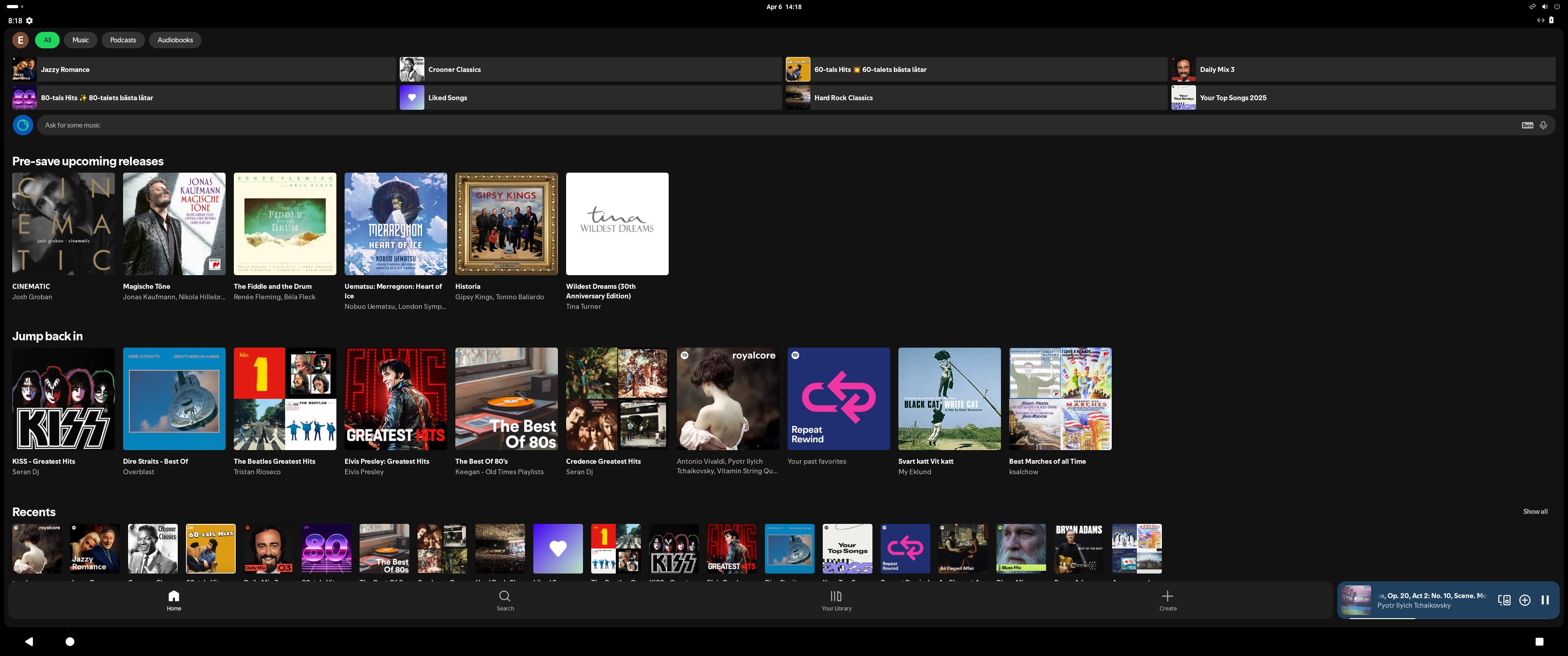
6. Running Spotify in Waydroid – screenshot
7. Re- initialize Waydroid after reboot – screenshot – i. e. you will have to restart Waydroid with the command sudo systemctl restart waydroid-container and then start Waydroid from the menu.
USB installation
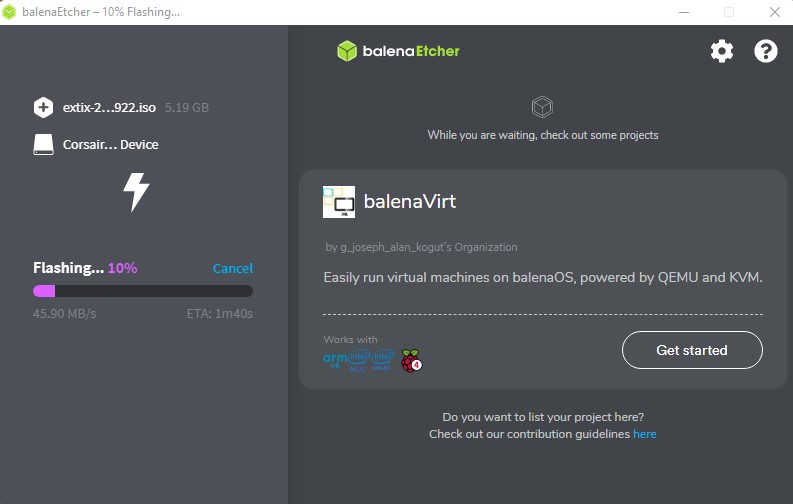
Read my instruction. NOTE: For a normal USB installation (without persistence) you must use Rufus or Etcher as regards ExTiX GNOME/Waydroid. Using other USB flash apps won’t make the USB stick bootable. When using Etcher it will look like this.
VirtualBox and VMware
ExTiX GNOME/Waydroid runs very well live in VirtualBox and VMware. NOTE: You can’t run Waydroid in VirtualBox or VMware. Not even after a (virtual) hard drive installation. It may be possible, but I haven’t been able to do it.
Spotify
You may want to install Spotify in ExTiX. Just go ahead. It’s very easy. Follow this instruction for Ubuntu.
Samba – Reach you Windows computers in your Network
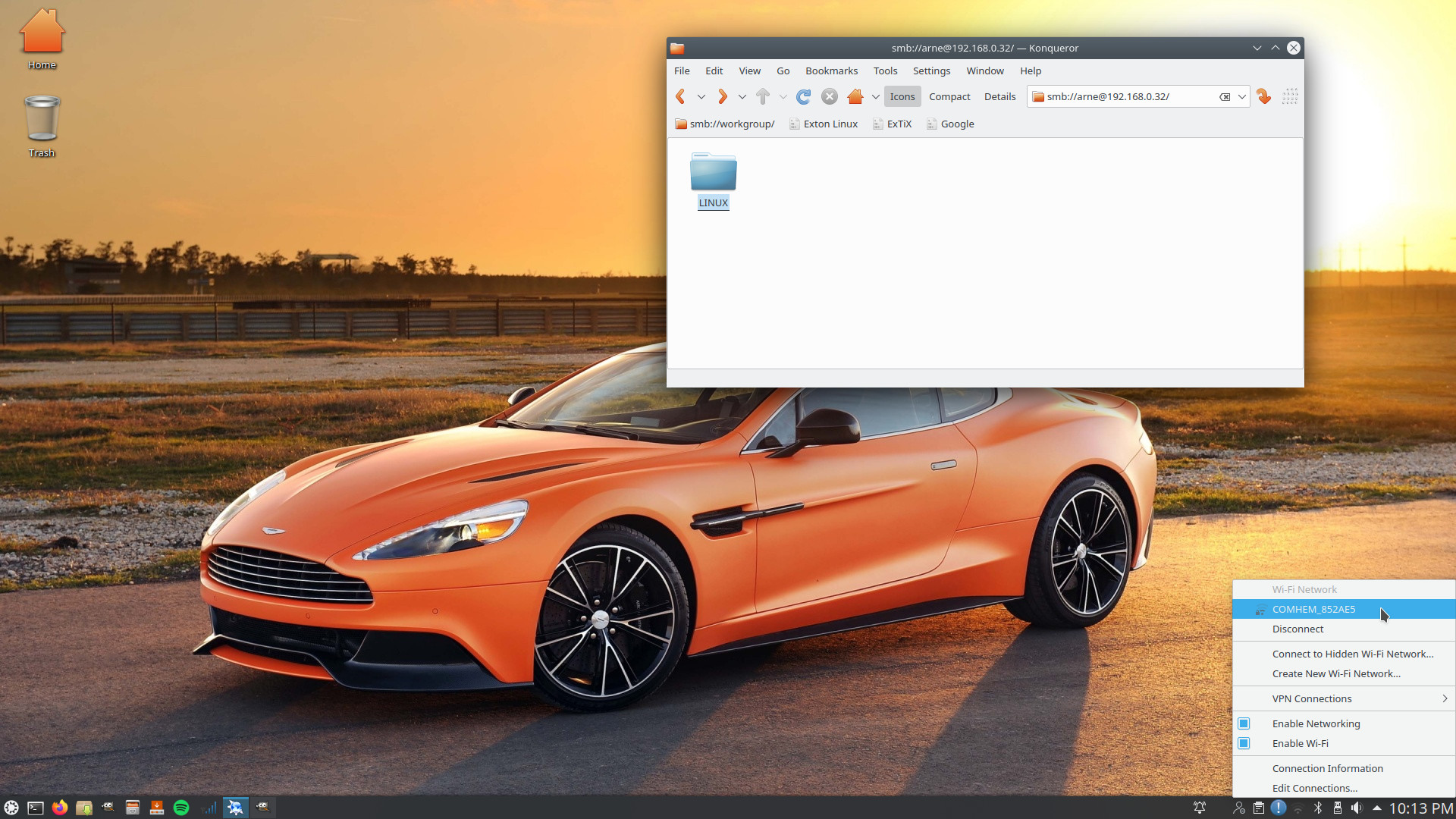
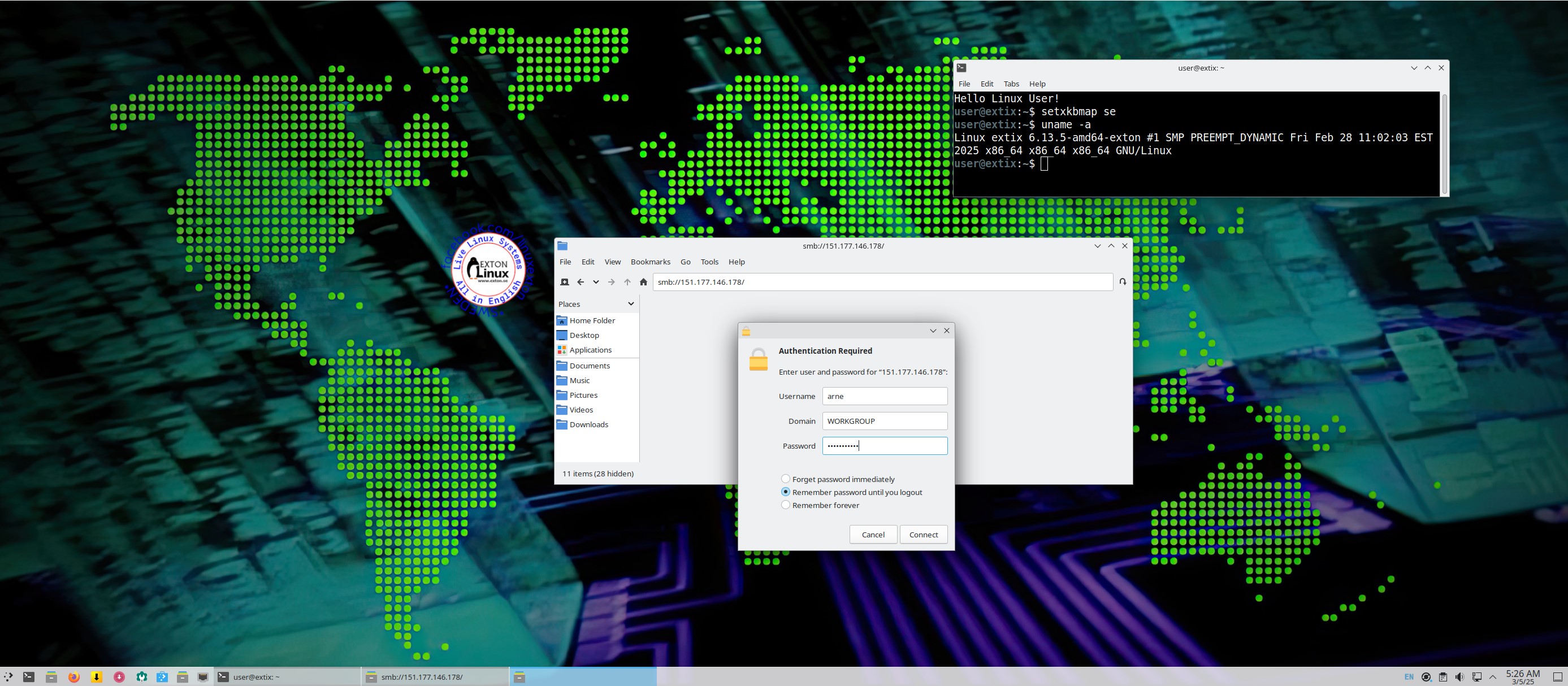
Samba works very well in ExTiX 26.4. Just start PCManFM and go to your PC’s IP address. For example smb://151.177.146.178. Your PC’s shared folders will be listed there (if the Network is named WORKGROUP).
Printing using Cups
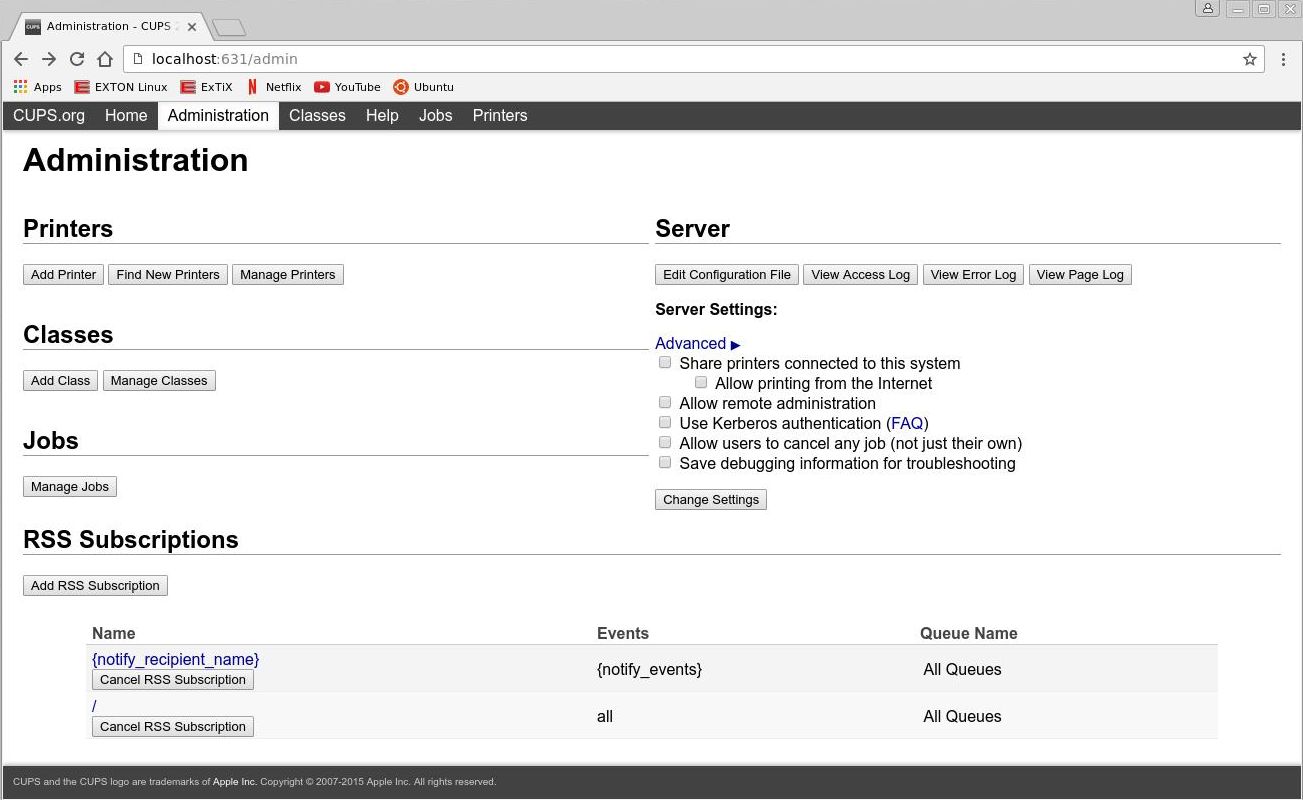
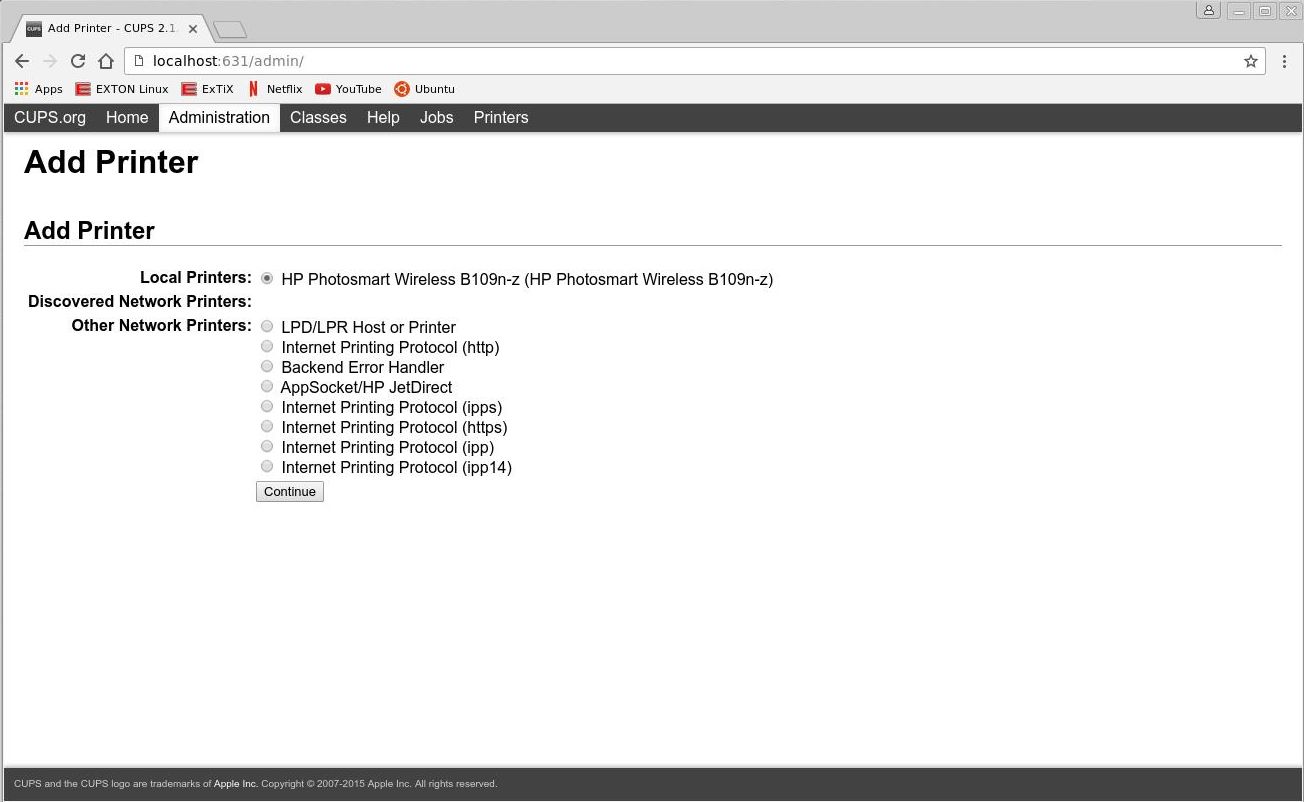
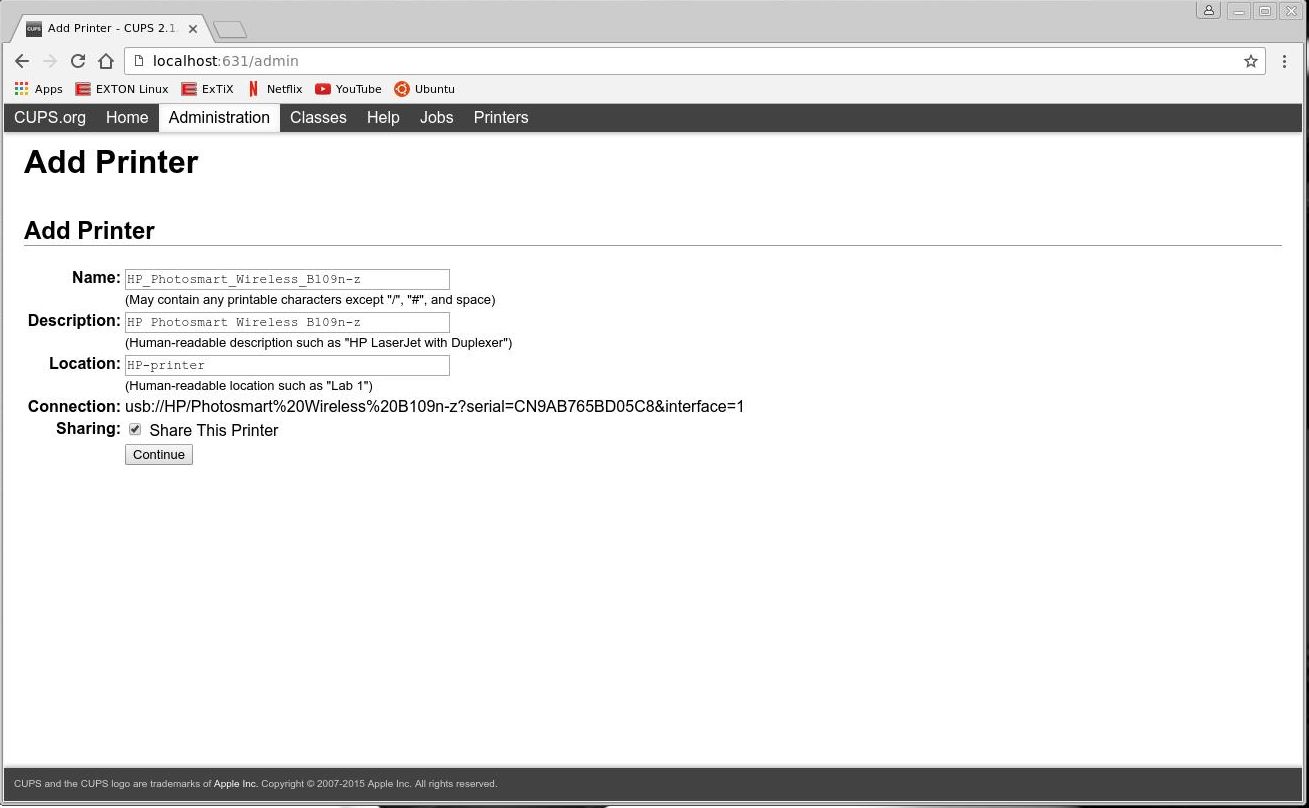
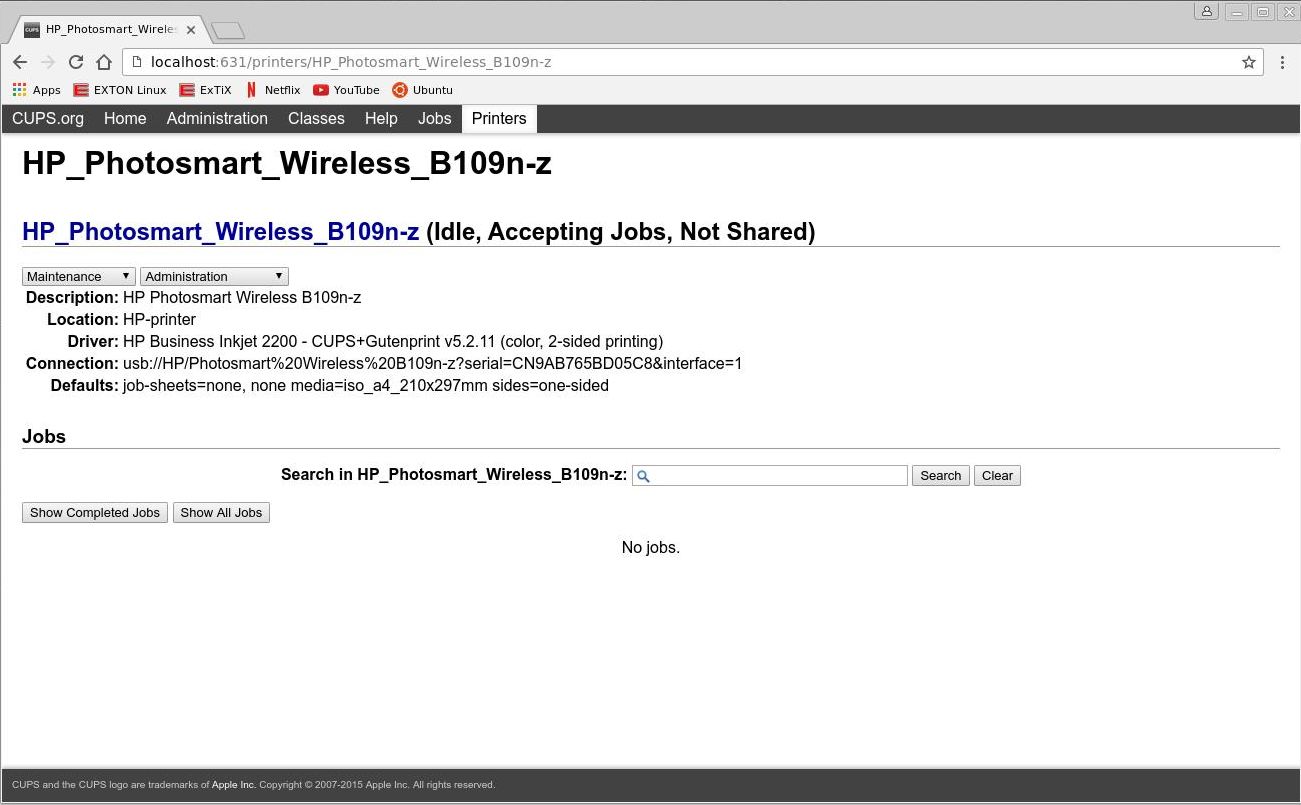
It’s really very simple to install a printer in ExTiX/Ubuntu. Cups (Common UNIX Printing System) is already installed. Open up Google Chrome or Firefox and go to http://localhost:631/admin. See the following five screenshots showing when I added my local printer HP Photosmart Wireless in ExTiX KDE.
1. Cups start page
2. Add the printer
3. Add a local printer
4. Configuration of the added printer
5. Printing a test document
Online photo editing with Fotojet
For “normal” photo editing you don’t need Adobe Photoshop or Gimp. Just go to fotojet.com (an all-in-one free online tool for photo editing, graphic design and photo collages) using Firefox or Google Chrome.
Important about Refracta
You can use the Refracta Snapshot (pre-installed in ExTiX 26.4) to create your own installable Ubuntu 26.04 Live System once you have installed ExTiX to hard drive. I mean change everything and then create a whole new Ubuntu live system. Start Refracta from Menu >> System >> Create a live CD snapshot of your system. You don’t even have to install ExTiX to hard drive before you can use the Refracta Snapshot. If you have plenty of RAM you can create a new (your own!) Ubuntu system while running ExTiX from DVD or a USB stick. Please note that the whole Refracta process (creating your new ISO) will only take 10 – 30 min! In VirtualBox/VMware it can take a couple of hours. You’ll find the ISO in /home/snapshots. The whole thing is very simple. Watch a slideshow showing how easy it is to use Refracta Snapshot. Note: You may have to run Refracta Snapshot in three (3) steps (1, 2 ,3) before your new ISO is ready.
Compatibility
A general truth: If an original system can run on a particular computer an Exton “remaster” of the same original system can run on the same computer. I never change a Linux system for the worse in terms of auto configuration and hardware detection, etc. It happens that I replace the original kernel, but always to a “better” one with even more native support for various hardware etc.
ONE KNOWN ISSUE about Calamares Installer
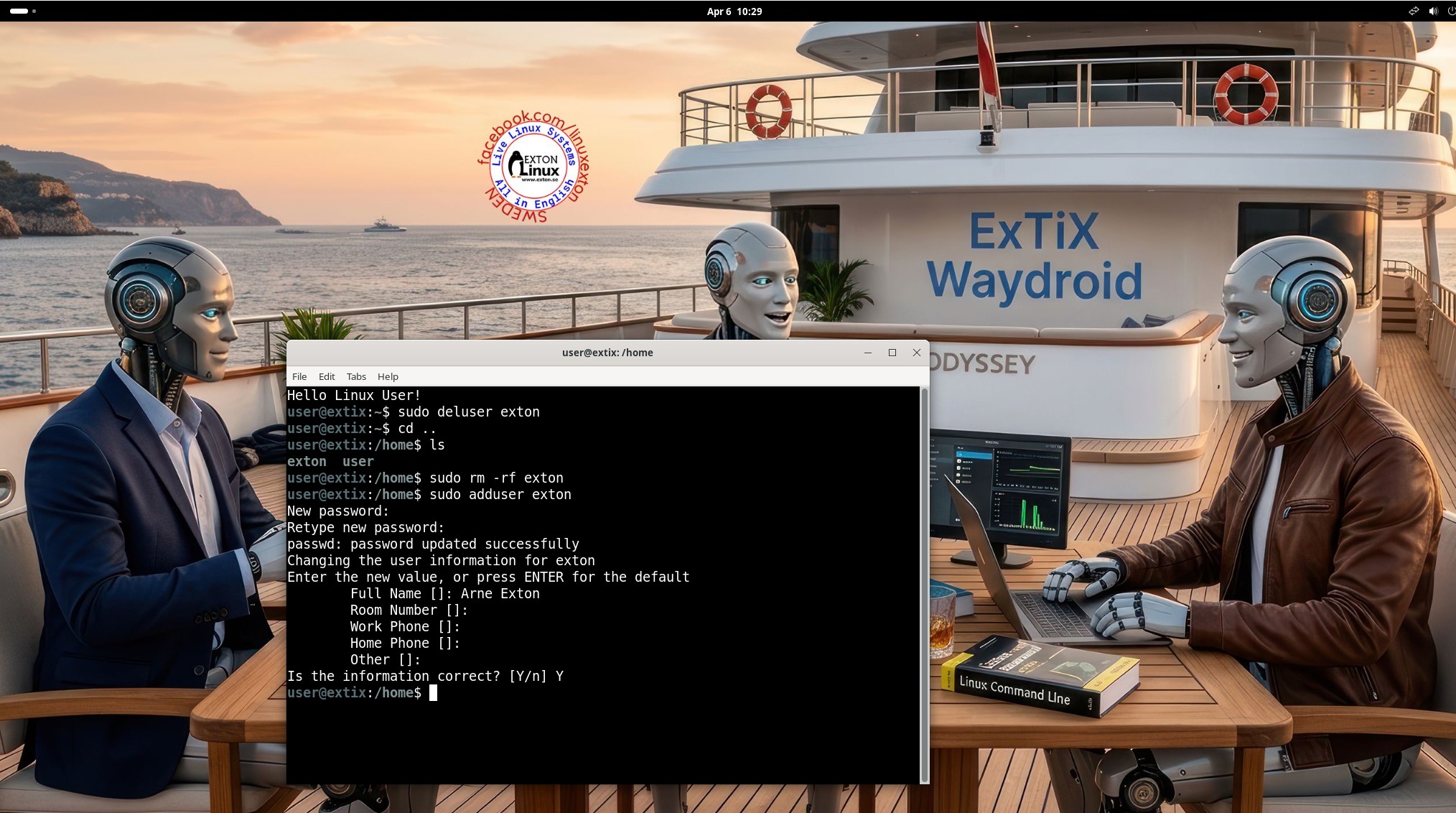
In Build 26.4 you can use Calamares Installer as an alternative to Refracta Installer. Calamares works very well with one exception. You can’t login to GNOME as the user you have created during the install process. You will have to login to GNOME as root (“Other”) with password root or as Linux User with password live. Then delete your created user with the command sudo deluser myuser. After that recreate your user with the command sudo adduser myuser. Watch this screenshot…
MORE SCREENSHOTS
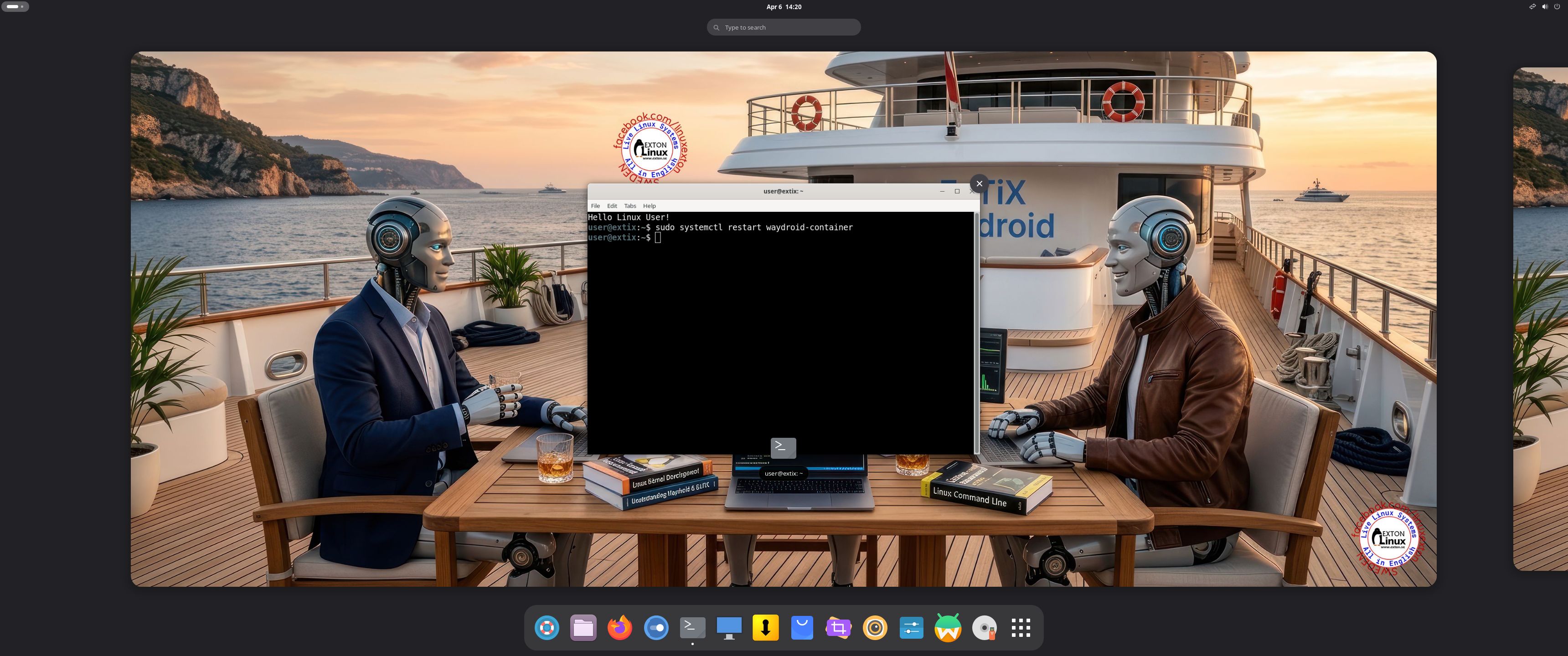
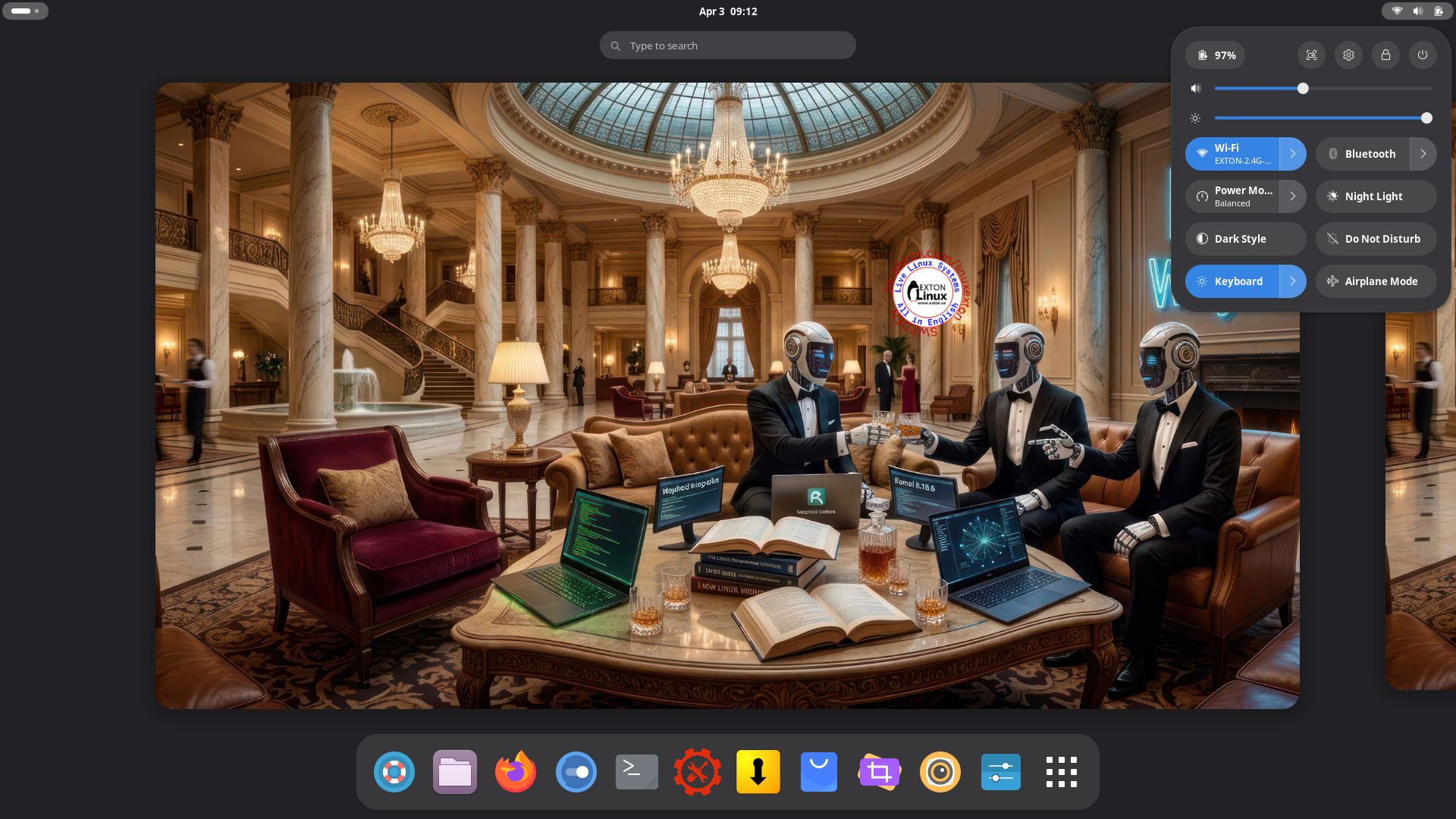
1. ExTiX GNOME user Desktop running 260407
2. The GNOME Desktop for root
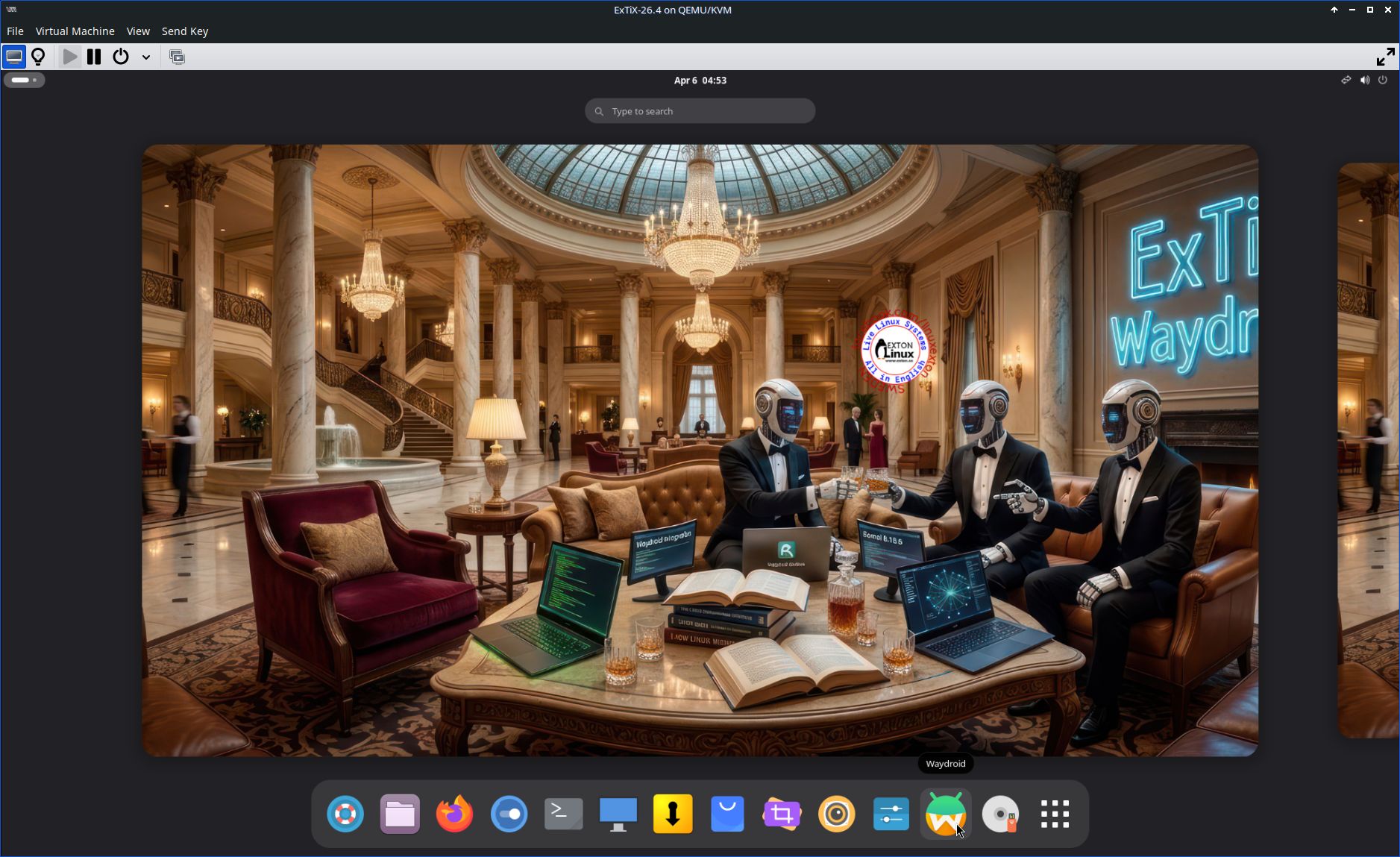
3. ExTiX 26.4 running in Qemu (the best way to run any Linux System virtually)
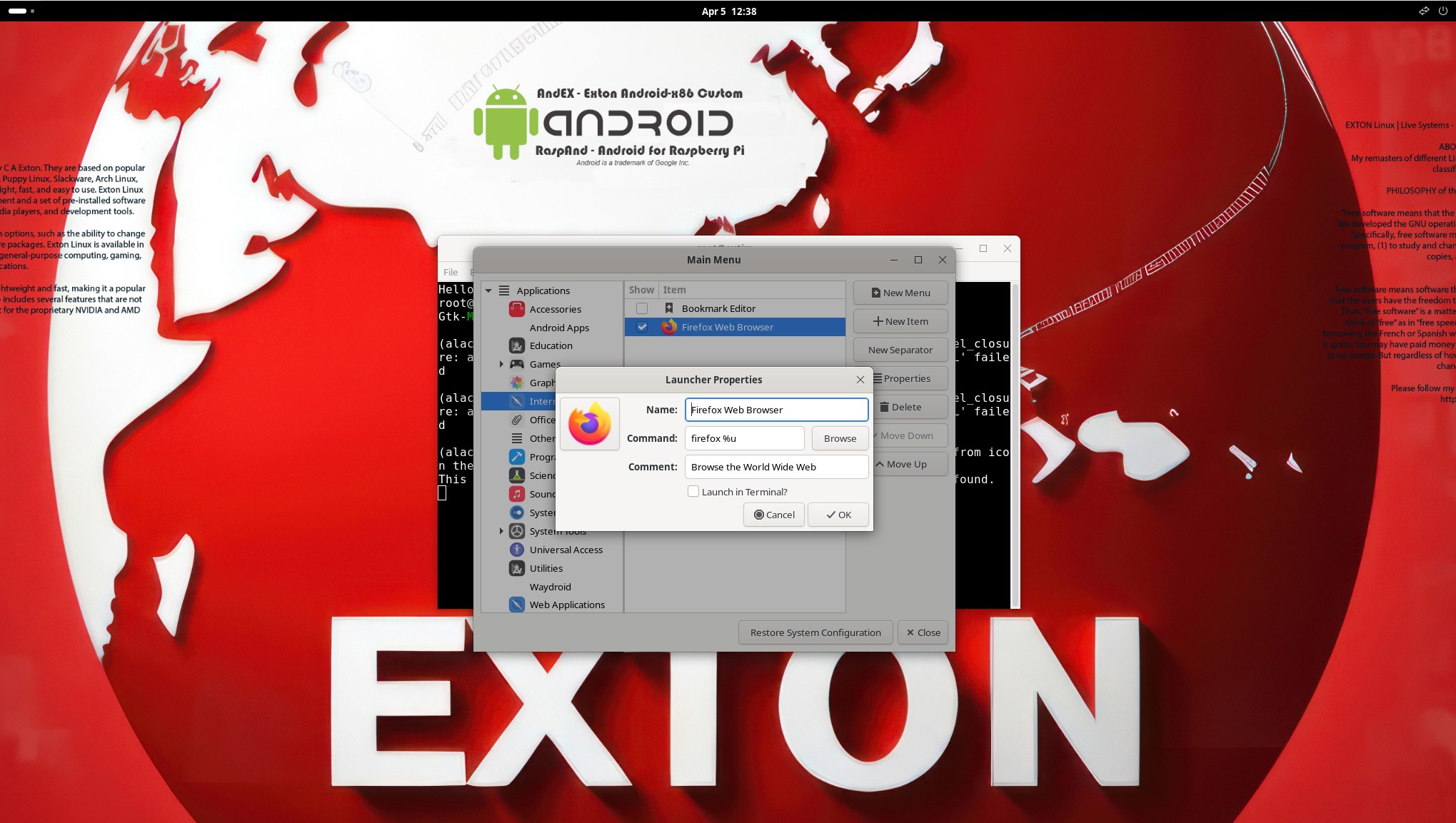
4. Using Alacarte

DOWNLOAD
Download ExTiX 26.4 from SourceForge.net – Fast, secure and free downloads from the largest Open Source applications and software directory.

md5sum for extix-26.4-64bit-gnome-waydroid-3540mb-260407.iso


Read about my Android-x86 Systems – 11, 10, Pie, Oreo, Nougat, Marshmallow, Lollipop and KitKat at andex.exton.net – latest is AndEX 11 (with GAPPS), AndEX 10 (with GAPPS) and AndEX Pie 9.0 (also with GAPPS)!
and
about my Android 16, 15, 14, 13, 12, 11, 10, Pie, Oreo, Nougat, Marshmallow and Lollipop versions for Raspberry Pi 5, Pi 4 and Pi 3/2 at raspex.exton.se – latest is RaspAnd 16 (with GAPPS), RaspAnd 15 (also with GAPPS), RaspAnd 14 (also with GAPPS), 13 and 12 (without GAPPS), RaspAnd 11 (with GAPPS) and RaspAnd Oreo 8.1 (also with GAPPS)!